
A Step-by-Step Guide for Configuring enblocal.ini: Enhancing Your Gaming Experience
For gamers who want to take their graphics and gameplay to the next level, enblocal.ini is a crucial configuration file. This file is an integral part of the ENB Series, a graphics modification tool used to enhance visual quality in games. If you're seeking a step-by-step guide to configure enblocal.ini, you've come to the right place. In this article, we'll provide you with clear instructions to help you optimize your gaming experience.
1. Understanding enblocal.ini
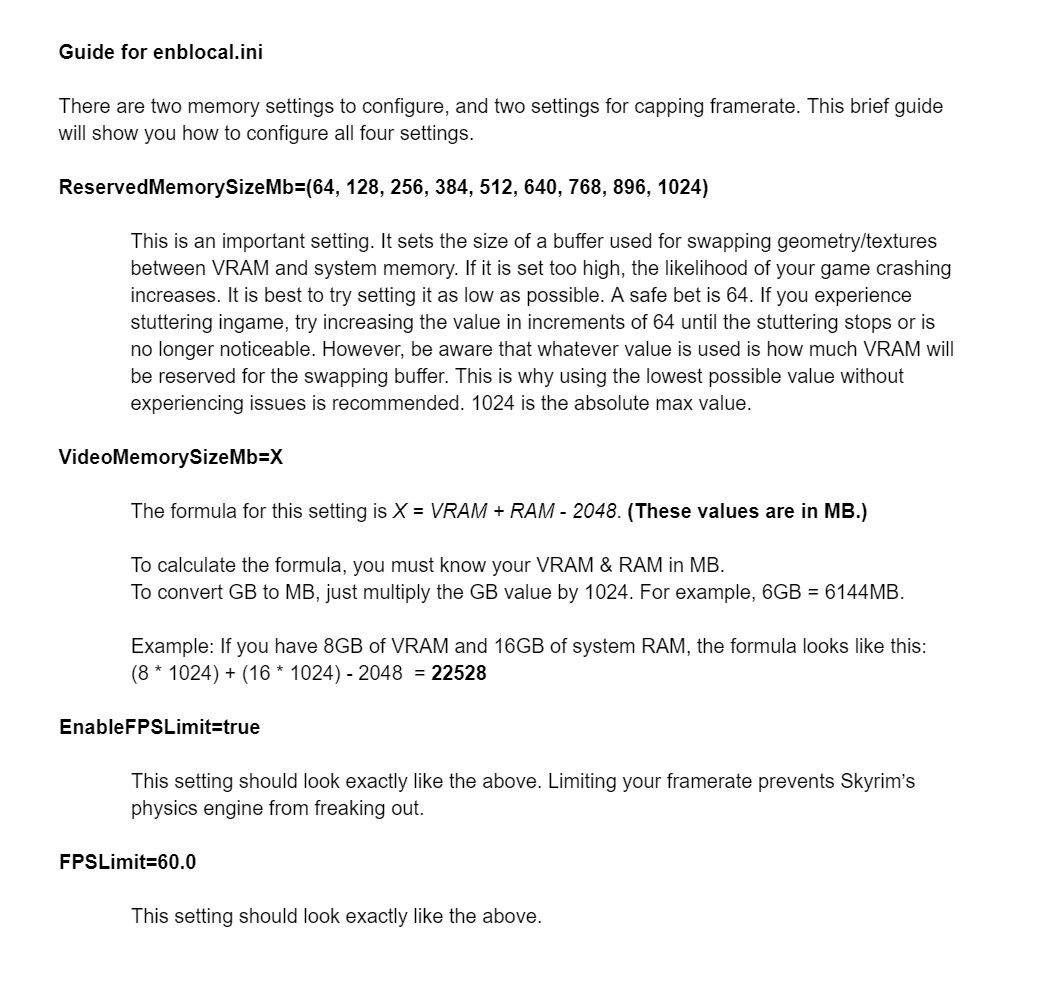
enblocal.ini
Before we dive into the step-by-step guide, let's grasp the concept of enblocal.ini.
This configuration file is a key component of the ENB Series, a post-processing graphics enhancement tool widely used by gamers to achieve stunning visuals in various games.
2. Backup Your Files
Before making any changes to configuration files, it's vital to back up your existing files.
This ensures that you have a restore point in case any issues arise during the process.
3. Locate enblocal.ini
The first step is to locate the enblocal.ini file within your game directory.
It's typically found in the main folder of the game you're enhancing with the ENB Series.
4. Open the File
Once you've located enblocal.ini, open it using a text editor of your choice. Notepad or a specialized code editor are common options.
5. Memory Settings

Memory Settings
In the enblocal.ini file, you'll find memory-related settings that significantly impact your game's performance. Here are some key settings to consider:
VideoMemorySizeMb: Adjust this value to reflect your graphics card's VRAM. It's recommended not to exceed 95% of your actual VRAM.
ReservedMemorySizeMb: Allocate a portion of your system RAM to improve stability. A common value is 64 for stability, but experimentation may be needed.
EnableCompression: Setting this to true can save VRAM but may impact load times slightly.
6. Manage VRAM Usage
To prevent VRAM-related issues, manage VRAM usage wisely:
ExpandSystemMemoryX64: Set this value to true if you have a 64-bit operating system and 8GB or more of RAM. It allows the game to use more RAM, reducing the load on VRAM.
ReduceSystemMemoryUsage: When set to true, this option allows the game to use less system memory, which can help manage VRAM usage more effectively.
7. Fine-Tuning
Fine-tuning enblocal.ini is essential to achieve the desired results:
EnableUnsafeMemoryHacks: Set this to false for stability. It's advisable not to risk stability for minor performance gains.
EnableOcclusionCulling: Enable this for performance improvement, but monitor its impact on image quality.
8. Manage Performance
ENB settings can impact performance significantly. Adjust these settings to balance visuals and performance:
ReservedMemorySizeMb: Keep this at a reasonable level to ensure system stability.
VideoMemorySizeMb: Adjust this based on your GPU's VRAM capacity.
9. Save and Test
After making changes to enblocal.ini, save the file and launch the game to test the new configuration. Monitor the game's performance, stability, and visual quality.
10. Adjust and Experiment
The beauty of enblocal.ini configuration is its flexibility.
Feel free to experiment with different settings and observe their impact on your game's visuals and performance.
11. Seek Community Feedback
For optimal results, consider seeking advice from online gaming communities.
Fellow gamers can provide insights, recommendations, and troubleshooting tips based on their experiences.
Configuring enblocal.ini can significantly enhance your gaming experience, but it requires careful adjustment and experimentation. By following this step-by-step guide and making informed decisions based on your system's capabilities, you can achieve the perfect balance between stunning visuals and smooth gameplay. Remember that every system is unique, so regular testing and adjustments are crucial to find the optimal settings that suit your preferences. With a well-tuned enblocal.ini, you'll unlock the full potential of the ENB Series and elevate your gaming to new heights.